Work emails take up more of the day than most people expect. You usually know what you want to say, but getting the tone right, keeping it short, and not sounding rude or robotic all take time.
These ChatGPT prompts for emails give you fill-in-the-blank templates for the messages you write most: first drafts, replies, follow-ups, and the awkward ones you’d rather put off. They work the same way in Claude and Gemini.
Use the cheat sheet below as a quick reference. Then read each section for a filled-in example you can copy and adjust.
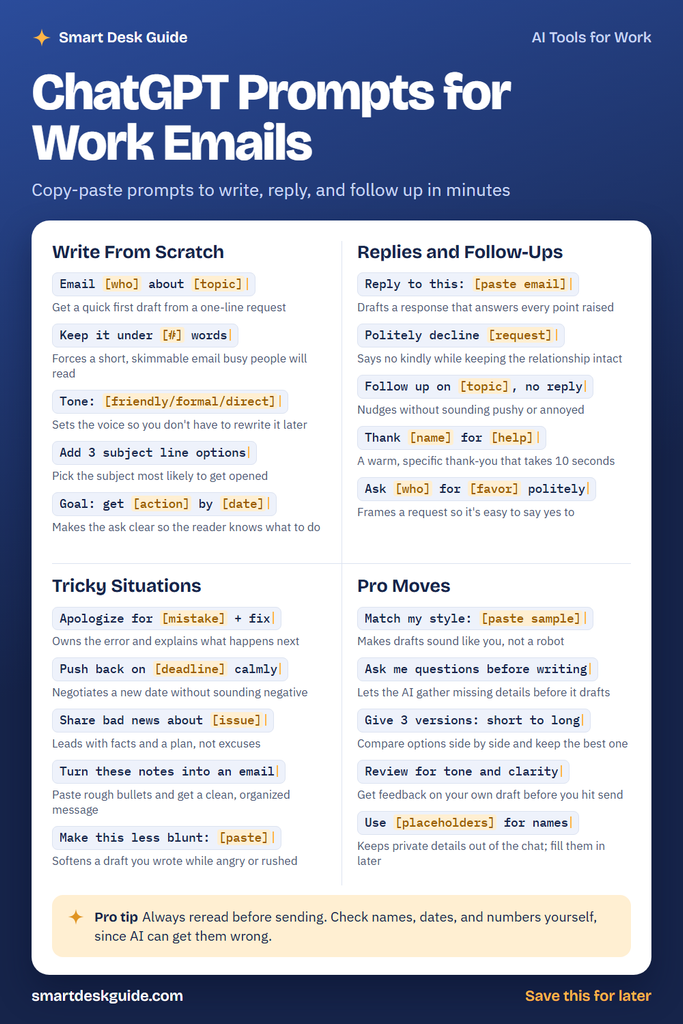
How to Use These Prompts
Words in [square brackets] are blanks. Replace them with your own details before you paste the prompt into your AI tool.
For example, Email [who] about [topic] becomes Email my manager, Dana, about moving our Thursday check-in to Friday morning. The first version gives the AI almost nothing to work with. The second gives it a person, a topic, and a clear change.
Many of these prompts also stack. You can combine a drafting prompt with a length limit and a tone, all in one request.
Write From Scratch
Start here when you’re facing a blank email. These prompts build a solid first draft, and you can mix them together.
Email [who] about [topic]
This is the simplest starting point. Even a one-line request gets you a full draft, and a draft is usually easier to fix than a blank screen is to fill.
Example: Email the building manager about the broken heater in suite 204
Keep it under [#] words
Add this line to any drafting prompt. AI drafts can run long, and busy readers tend to skim or skip long emails.
Example: Email the building manager about the broken heater in suite 204. Keep it under 80 words.
Tone: [friendly/formal/direct]
Naming the tone up front saves you a round of rewrites. Use friendly for coworkers, formal for clients or leadership, and direct when you need a quick answer.
Example: Write a quick note asking the design team for the updated logo files. Tone: friendly.
Add 3 subject line options
The subject line affects whether your email gets opened now or later. Asking for three gives you choices, so you can pick the clearest one.
Example: Write an email inviting the sales team to a lunch for new hires next Wednesday. Add 3 subject line options.
Goal: get [action] by [date]
This line tells the AI exactly what you need the reader to do. It moves your request to the top of the email instead of burying it in the last paragraph.
Example: Email our catering vendor about the team event order. Goal: get a signed quote by Friday.
Replies and Follow-Ups
Replies are where most email time goes. These prompts help you answer quickly without missing anything.
Reply to this: [paste email]
Paste the email you received, and the AI drafts a response that covers each point. This helps most with long messages that hide several questions. Before pasting, remove anything confidential.
Example: Reply to this: Hi Chris, can you confirm the event headcount, send the updated budget, and let me know if the venue has parking? Thanks, Priya
Politely decline [request]
Saying no is hard to put in writing. This prompt helps you turn something down clearly while keeping the tone warm, so the relationship stays on good terms.
Example: Politely decline a request from my coworker Taylor to join the weekend planning committee, because my schedule is full this month
Follow up on [topic], no reply
When someone hasn’t answered, a follow-up can easily sound impatient. This prompt keeps it short and friendly while still moving things forward.
Example: Follow up on the proposal I sent to a local coffee shop owner last week, no reply
Thank [name] for [help]
Specific thank-you notes mean more than generic ones. Naming exactly what the person did makes the message feel sincere, and it takes seconds to send.
Example: Thank Jordan for staying late to fix the budget spreadsheet before the client meeting
Ask [who] for [favor] politely
Asking for help feels awkward, so people often over-apologize or skip the details. This prompt frames the request clearly and makes it easy for the other person to say yes.
Example: Ask my former supervisor, Lisa, to be a job reference politely
Tricky Situations
Some emails are hard because of what’s at stake. These prompts help you stay calm, clear, and professional.
Apologize for [mistake] + fix
A good apology owns the mistake and explains what happens next. Including the fix keeps the email from being all apology and no action.
Example: Apologize for sending the client the wrong project timeline + fix: the corrected version is attached, and I've added a second review step before anything goes out
Push back on [deadline] calmly
When a deadline isn’t realistic, a calm message with a clear reason and a new date beats saying nothing. This prompt keeps the tone steady and focused on solutions.
Example: Push back on the Friday deadline for the quarterly report calmly, since the sales numbers won't be final until Monday
Share bad news about [issue]
Bad news is easier to accept when it comes with facts and a plan. This prompt leads with what happened and what you’ll do next, not with excuses.
Example: Share bad news about a two-week shipping delay on the office chairs a customer ordered
Turn these notes into an email
Sometimes you know what to say, but only as messy bullet points. Paste your notes after this prompt, and the AI organizes them into a clean message.
Example: Turn these notes into an email: team lunch moved to 12:30, new room is 3B, bring laptops for the demo, RSVP by Tuesday
Make this less blunt: [paste]
If you wrote a draft while frustrated or rushed, this prompt softens it without losing your point. It’s a smart check before you send anything emotional.
Example: Make this less blunt: I've asked for these files three times. I need them today or the project will be late.
Pro Moves
Once you’re comfortable with the basics, these prompts make AI drafts sound more like you and less like a template.
Match my style: [paste sample]
Paste two or three short emails you wrote yourself. The AI can pick up your usual length, greetings, and word choice, so new drafts need fewer edits.
Example: Match my style: Hi all, quick update on the office move. Boxes arrive Monday, so please pack your desks by the end of the day Friday. Thanks! -Sam
Ask me questions before writing
This flips the usual process. Instead of guessing at missing details, the AI asks you first, which leads to a more accurate first draft.
Example: I need to email a longtime client about a price increase for our cleaning service. Ask me questions before writing.
Give 3 versions: short to long
Sometimes you don’t know how much to say until you see it. Three versions let you compare them side by side and keep the one that fits the reader.
Example: Write a welcome email for a new team member, Marcus. Give 3 versions: short to long.
Review for tone and clarity
You don’t have to let AI write the email to get value from it. Paste your own draft and ask for feedback on anything that sounds unclear, cold, or confusing.
Example: Review for tone and clarity: Per my last email, the report is still missing. Please advise on timing.
Use [placeholders] for names
This habit keeps private details out of AI tools. Write your prompt with placeholders, then fill in real names, numbers, and client details after you copy the draft into your email app.
Example: Write a refund confirmation email. Use CUSTOMER_NAME and ORDER_NUMBER as placeholders for names and numbers.
Pro Tip
Always reread before sending, and check names, dates, and numbers yourself. AI drafts can read smoothly and still contain small errors, like a misspelled name or a day that doesn’t match your notes.
It helps to do two quick passes: one for facts and one for tone. For example, if Rosa’s notes say the client meeting moved to Tuesday, she should confirm the draft didn’t turn that into Thursday, and that the client’s name is spelled exactly right, before she hits send.
FAQ
Can ChatGPT write professional emails?
Yes. ChatGPT, Claude, and Gemini can all draft professional emails when you give them clear details about the reader, the goal, and the tone. Treat the result as a first draft and review it before sending.
How do I make AI-written emails sound less robotic?
Give the AI a sample of your own writing and ask it to match your style. Then edit the draft to add a personal detail or two, and cut any phrases you’d never say out loud.
Is it safe to paste work emails into an AI tool?
Be careful with anything confidential. Remove names, account numbers, and client details or replace them with placeholders, and follow your company’s AI policy if it has one.
Final Thoughts
Good prompts turn email from a chore into a quick edit. Start with the basics, add tone and length, and try the pro moves once you’re comfortable. Give every draft a final read before it goes out.
Save the cheat sheet to your Pinterest board so these prompts are handy the next time you’re stuck, and bookmark this page to come back to the full examples.