Meetings end, and then the real work starts. You have a page of rough notes, a few half-remembered decisions, and a list of tasks nobody wrote down.
This guide gives you ChatGPT prompts for meeting notes that clean that up. You will get prompts to summarize a meeting, pull out action items, write follow-up messages, and avoid the mistakes that put private information at risk.
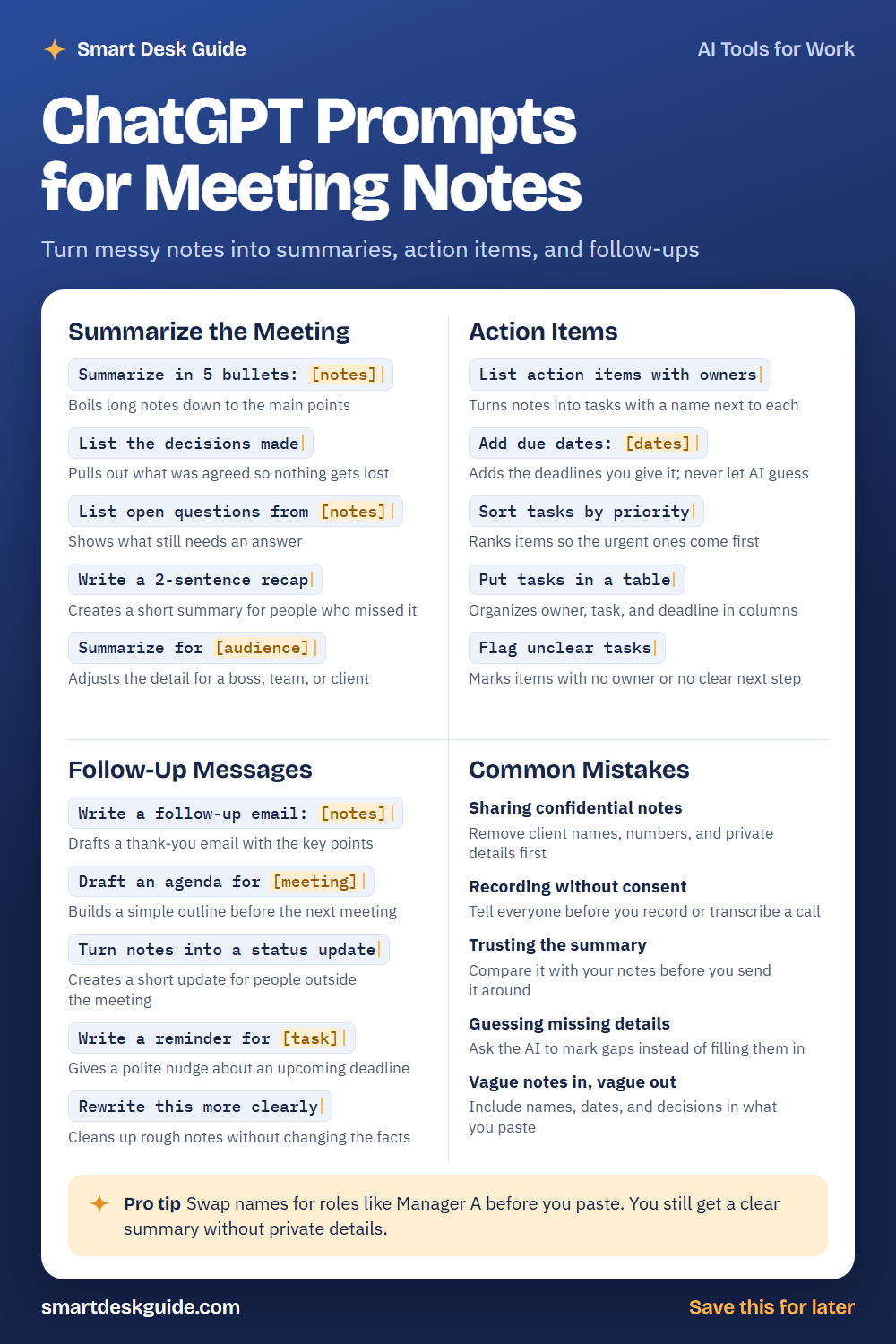
Use the cheat sheet below as a quick reference. Then read on to see when to use each prompt and how it looks filled in.
How to Use These Prompts
Words in [brackets] are blanks. Replace each one with your own details before you send the prompt.
Before: Summarize in 5 bullets: [notes]
After: Summarize in 5 bullets: Team agreed to move the launch to May. Dana will update the schedule. We still need a budget answer.
Paste your notes right after the prompt, and add a line about who the summary is for. These prompts work the same way in ChatGPT, Claude, and Gemini. Remove client names and confidential details before you paste anything.
Summarize the Meeting
Summarize in 5 bullets: [notes]
Long notes hide the main points. This prompt boils them down to five bullets you can scan in seconds. Read the result next to your notes to make sure nothing important was dropped.
Example: Summarize in 5 bullets: The team reviewed the spring menu. Two new drinks were approved. The bakery case will be reorganized. Ordering starts next week.
List the decisions made
Decisions are easy to lose in a long discussion. This prompt pulls out only what was agreed. It works well when several people remember the meeting differently.
Example: List the decisions made in these notes: We chose Friday for the staff meeting. We will keep the current supplier. We will not add a second shift yet.
List open questions from [notes]
Every meeting leaves a few loose ends. This prompt lists what still needs an answer so you can chase it down. Add an owner to each question afterward.
Example: List open questions from these notes: Budget for new signs is unclear. Nobody confirmed the delivery date. We need to decide who runs the weekend shift.
Write a 2-sentence recap
A short recap helps people who missed the meeting. Two sentences is enough to explain what happened and what comes next. Use it as the first line of an email or chat message.
Example: Write a 2-sentence recap of this meeting: We approved the new schedule and assigned tasks for the May launch.
Summarize for [audience]
The same meeting needs different summaries for different readers. A manager wants decisions, while a team wants tasks. Tell the AI who will read it.
Example: Summarize for a busy manager who only needs decisions and deadlines: The team chose Friday meetings and assigned launch tasks.
Action Items
List action items with owners
This turns discussion into tasks with a name next to each. Give the AI the names that appear in your notes. Check the list against what people actually agreed to do.
Example: List action items with owners: Dana will update the schedule. Marcus will call the supplier. Priya will send the menu to the printer.
Add due dates: [dates]
Add only the deadlines you know. Never let the AI guess a date, because a guessed deadline can cause real confusion. If a date is missing, leave it blank and follow up.
Example: Add due dates: Dana's schedule is due Monday, Marcus calls on Wednesday, and Priya's menu goes to print on Friday.
Sort tasks by priority
Not every task is urgent. This prompt ranks them so the most time-sensitive ones come first. Tell the AI what “urgent” means for your team, such as blocking other work.
Example: Sort tasks by priority, with anything that blocks the launch first: update schedule, call supplier, print menus, order signs.
Put tasks in a table
A table makes ownership clear at a glance. Ask for columns like owner, task, and deadline. You can paste it into an email or a shared document.
Example: Put tasks in a table with columns for owner, task, and deadline: Dana updates the schedule by Monday, Marcus calls the supplier by Wednesday.
Flag unclear tasks
Some tasks have no owner or no clear next step. This prompt marks them so you can fix them before the meeting fades from memory. It is a good last check before sending notes.
Example: Flag unclear tasks in this list: Update signs. Talk to the supplier. Priya sends the menu to the printer by Friday.
Follow-Up Messages
Write a follow-up email: [notes]
Send a follow-up while the meeting is fresh. The AI can draft a short message that thanks people and lists key points. Read it and adjust the tone before you send.
Example: Write a follow-up email: We met to plan the May launch. Decisions: Friday meetings, current supplier. Tasks: Dana, Marcus, and Priya as listed. Keep it friendly and under 150 words.
Draft an agenda for [meeting]
A simple agenda keeps the next meeting focused. Give the topic, the length, and the people who will attend. Then cut anything that could be handled by email.
Example: Draft an agenda for a 30-minute check-in on the May launch with four team members.
Turn notes into a status update
People outside the meeting need a quick update, not every detail. This prompt turns notes into a short status message. Ask for a format like progress, risks, and next steps.
Example: Turn notes into a status update with progress, risks, and next steps: Menu approved, delivery date unconfirmed, printing starts Friday.
Write a reminder for [task]
A polite reminder can prevent a missed deadline. Include the task, the date, and the tone you want. Keep it friendly, not pushy.
Example: Write a reminder for Marcus about calling the supplier by Wednesday. Keep it friendly and short.
Rewrite this more clearly
Notes taken in a hurry are often confusing. This prompt cleans them up without changing the facts. Compare the new version to your original.
Example: Rewrite this more clearly without changing the facts: sched change fri, sup call marcus, menu print ok.
Common Mistakes
Sharing confidential notes
Do not paste private client names, financial figures, or personal details into an AI tool. Quick fix: replace names with roles like Manager A and remove numbers you do not need.
Recording without consent
Rules on recording and transcribing calls differ by place. Tell everyone before you record, and get their consent. When in doubt, check your company policy or local rules.
Trusting the summary
AI can miss a point or misstate a decision. Read the summary against your own notes before you send it around. If something looks wrong, fix it.
Guessing missing details
If your notes leave a gap, the AI may fill it with a guess. Add this line to your prompt: If something is missing, mark it as unclear instead of guessing.
Vague notes in, vague out
A summary is only as good as your notes. Include names, dates, and decisions in what you paste. Even a few short lines per topic helps a lot.
Pro Tip
Swap names for roles like Manager A before you paste. You still get a clear summary without sharing private details, and you can add the real names back yourself.
Example: Summarize this meeting in 5 bullets and list action items by role: Manager A wants the report by Friday. Designer B will send drafts on Wednesday.
FAQ
Can ChatGPT summarize meeting notes?
Yes. Paste your notes and ask for a summary, decisions, or action items. It works best when your notes include names, dates, and decisions. Always compare the result with your original notes.
Is it safe to put meeting notes into AI?
Be careful. Leave out confidential and personal details, and check the privacy settings of the tool you use. Use roles instead of names when you can.
How do I get better action items?
Tell the AI to list only tasks that have a clear owner. Then ask it to flag anything unclear. Add real deadlines yourself instead of letting the AI guess.
Final Thoughts
AI can turn a messy page of notes into a clear summary in a few minutes. It works best when you give it good notes and check the results. Keep private details out of the chat, and add deadlines yourself.
If this guide helped, save the cheat sheet on Pinterest and bookmark this page for your next meeting.