Making a budget sounds simple until you sit down to do it. Bills are scattered, categories are unclear, and it is hard to know where to begin.
This guide shows you how to use ChatGPT for budgeting as a helper for organizing your money, not as a financial advisor. You will get prompts to set up a budget, sort expenses, plan goals, and avoid the mistakes that put your privacy at risk.
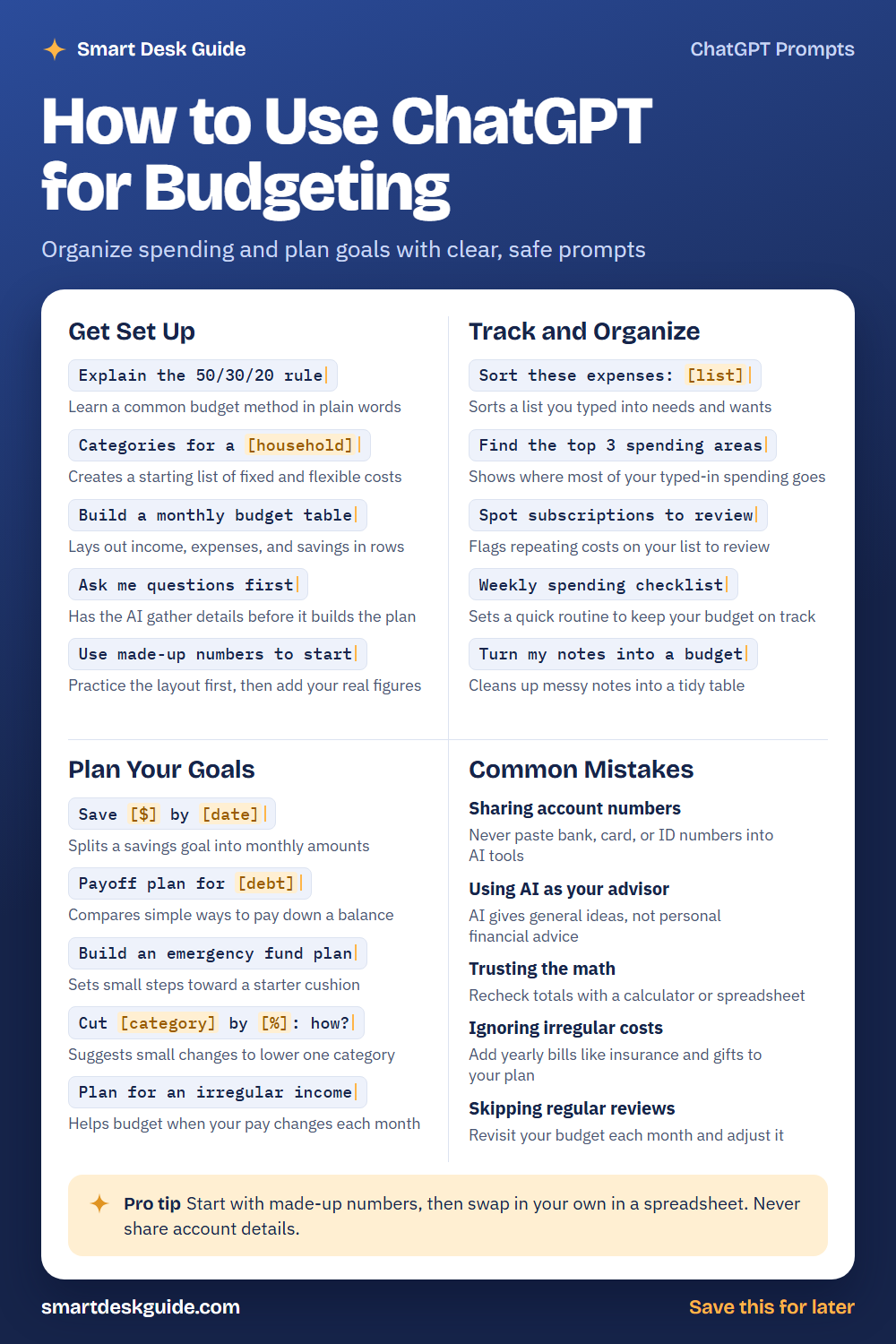
Save the cheat sheet below for quick reference. Then read on to see when to use each prompt and how it looks filled in.
How to Use These Prompts
Words in [brackets] are blanks. Replace each one with your own details before you send the prompt.
Before: Save [$] by [date]
After: Save $1,200 by December for a family trip.
Start with made-up numbers to test the layout, and add your real figures later in a spreadsheet. Never paste account numbers or other private financial details into a chat. These prompts work the same way in ChatGPT, Claude, and Gemini.
Get Set Up
Explain the 50/30/20 rule
Many budgets follow a simple rule that splits income into needs, wants, and savings. Ask the AI to explain it in plain words. Then decide if the split works for your situation.
Example: Explain the 50/30/20 rule in plain words, with an example using a made-up income of $3,000 a month.
Categories for a [household]
A budget starts with categories, such as housing, food, transportation, and savings. Tell the AI about your household so the list fits. Drop any category that does not apply.
Example: Categories for a household with two adults, one child, and one car.
Build a monthly budget table
A table shows income, expenses, and savings in one place. Ask for columns like category, planned amount, and actual amount. You can copy it into a spreadsheet later.
Example: Build a monthly budget table with columns for category, planned, actual, and difference.
Ask me questions first
Instead of guessing, let the AI ask what it needs. This helps fill in gaps you may not have thought of. Answer with rough numbers if you are not sure.
Example: Ask me questions first, one at a time, before you build my monthly budget.
Use made-up numbers to start
Practice the layout before you add real data. Made-up numbers keep your private information out of the chat. Swap in your real figures in a spreadsheet you control.
Example: Use made-up numbers to start. Assume $3,500 monthly income and typical living costs.
Track and Organize
Sort these expenses: [list]
If you have a messy list of purchases, ask the AI to sort them into categories. Type the list yourself with items and amounts, and leave out account details. Check the sorting for mistakes.
Example: Sort these expenses into needs and wants: rent $1,100, groceries $320, streaming $15, dinner out $60.
Find the top 3 spending areas
Once your expenses are sorted, find where most of the money goes. The AI only uses the numbers you typed, so keep them accurate. Verify the totals with a calculator.
Example: Find the top 3 spending areas in this list: rent $1,100, groceries $320, gas $90, dinner out $140, streaming $15.
Spot subscriptions to review
Small repeating charges add up. Paste a list of the recurring items you typed and ask the AI to flag them for review. You decide what to keep or cancel.
Example: Spot subscriptions to review: music $11, streaming $15, gym $30, cloud storage $3.
Weekly spending checklist
A short weekly routine keeps a budget alive. Ask for a checklist that takes ten minutes. Set a reminder so the habit sticks.
Example: Weekly spending checklist that takes 10 minutes or less, for a household with two adults.
Turn my notes into a budget
If your plan lives in scattered notes, this prompt turns them into a tidy table. Type in your notes with made-up or rounded numbers. Confirm every line looks right.
Example: Turn my notes into a budget: rent about 1,100, food about 400, gas about 100, save 200.
Plan Your Goals
Save [$] by [date]
A clear goal is easier to reach when it is split into monthly steps. Give the amount and date, and the AI will work out a monthly figure. Recheck the math yourself.
Example: Save $2,400 by next June. How much per month, starting in January?
Payoff plan for [debt]
The AI can explain simple ways to pay down a balance, such as paying the smallest first or the highest rate first. It cannot judge what is best for your situation. Consider talking to a qualified professional.
Example: Payoff plan for a $1,500 credit card balance. Compare two simple approaches, with made-up numbers.
Build an emergency fund plan
An emergency fund is money set aside for surprises. Ask for small steps toward a starter goal, and choose an amount that feels doable. Adjust it as your situation changes.
Example: Build an emergency fund plan that starts with saving $25 a week.
Cut [category] by [%]: how?
To trim one area, ask for small, realistic changes. Choose a category that feels flexible, like dining out. Small steps are easier to keep up.
Example: Cut dining out by 20%: how? We spend about $300 a month.
Plan for an irregular income
Freelancers and seasonal workers face uneven months. Ask for a method that budgets from a lower baseline. Use your own past income to set the numbers.
Example: Plan for an irregular income. Some months I earn $2,000 and others $3,500.
Common Mistakes
Sharing account numbers
Never paste bank, card, or ID numbers into an AI tool. You do not need them to build a budget. Quick fix: use rounded amounts and category names only.
Using AI as your advisor
AI gives general ideas, not personal financial advice. It does not know your full situation. For big decisions about debt, taxes, or investing, talk to a qualified professional.
Trusting the math
AI can make arithmetic errors. Recheck totals with a calculator or a spreadsheet formula. Use the AI for structure, and let a spreadsheet handle the math.
Ignoring irregular costs
Yearly or occasional bills can break a budget, such as insurance, car repairs, and gifts. Add them to your plan. For example, say Add a yearly costs line and divide it by 12.
Skipping regular reviews
A budget is not a one-time job. Revisit it each month and adjust the plan to match real life. A short check-in beats a perfect plan that no one looks at.
Pro Tip
Start with made-up numbers, then swap in your own in a spreadsheet. Never share account details, and use the AI mostly for structure and ideas.
Example: Create a blank monthly budget template with sample numbers so I can copy it into a spreadsheet and replace them.
FAQ
Can ChatGPT make a budget for me?
It can help you build a budget layout, sort expenses you typed in, and plan savings steps. It cannot see your accounts, and it is not a financial advisor. You supply the numbers and make the decisions.
Is it safe to enter my finances into AI?
Be careful. Do not share account numbers, passwords, or ID numbers. Use rounded or made-up amounts, and check the privacy settings of the tool you use.
What is the best way to start?
Start small. Ask the AI to explain a basic method, build a simple table with sample numbers, and then move the layout into a spreadsheet. Add real figures there and review them each month.
Final Thoughts
AI can make budgeting feel less intimidating by giving you structure and ideas. It works best as a helper, with you in charge of the numbers and the choices. Keep your private data out of the chat, and check every calculation.
If this guide helped, save the cheat sheet on Pinterest and bookmark this page for your next budget check-in.